KaraoQ Guide
How to do karaoke on your TV
A TV turns a phone-sized karaoke session into a proper show — big lyrics everyone can read from the couch. You don't need a karaoke machine or a TV karaoke subscription to get there. KaraoQ runs in a browser, so the words can reach your screen five different ways: the TV's own browser, casting, AirPlay, a streaming stick, or a cable. Below is the fastest path for every kind of TV, and the one audio setting that stops your voice from arriving a beat late.
Updated September 2026
The no-gadget way: open KaraoQ in the TV's browser
If your TV has a web browser — most Samsung and LG sets do, and Fire TV has Silk — you don't need to cast anything. Create a room on your phone, then on the TV open the browser and go to the display address shown on your host screen (it ends in your room code). Tap once on the remote to allow playback and the TV becomes the karaoke screen: current song, lyrics, and who's up next. Your phone stays the remote, and guests queue from theirs.
This works well on TVs from about 2020 onwards. Older sets run very old browsers and may refuse to play video; if that happens, use one of the routes below instead. The TV browser also fixes the delay problem by design — the music comes out of the TV, and there's nothing wireless in the chain to lag.
Chromecast and Google TV
On a laptop, open KaraoQ's display view in Chrome, click the three-dot menu, choose Cast, and pick your TV — this casts just that tab. From an Android phone, use screen mirroring from the Google Home app or your phone's Cast tile. Both send video and audio together, so the words and the music stay in sync on the TV.
Tab casting re-encodes the picture, so on a busy Wi-Fi network it can stutter. If it does, drop the casting quality to 480p (the lyrics are still perfectly readable) or move the router closer. A Google TV device can also install a browser, at which point the no-gadget route above applies.
Apple TV and AirPlay
From an iPhone, iPad or Mac, open Control Center, choose Screen Mirroring and pick your Apple TV — or any recent Samsung, LG or Roku TV, since most of them now accept AirPlay directly. Open KaraoQ's display view and it fills the TV.
Mirroring carries the audio with the picture, so lyrics and music stay locked together. If the room's speaker seems slightly behind, Apple TV has a fix under Settings → Video and Audio → Wireless Audio Sync. Note that Apple's own TV karaoke needs an Apple Music subscription; the YouTube route through AirPlay is free.
Amazon Fire TV Stick
Every Fire TV Stick ships with the Silk browser, so the easiest path is to open KaraoQ's display address directly on the stick — no phone mirroring needed. Use the remote to type the address once; the TV then runs the show on its own.
Android phones can also mirror to a Fire Stick through the Display Mirroring setting. iPhones can't AirPlay to a Fire Stick without a third-party receiver app, so if your household is iPhone-only, the Silk browser or an HDMI cable is the cleaner choice.
Roku
Roku is the one platform with no real web browser, so you have to send the picture to it. Newer 4K Roku players and Roku TVs accept AirPlay from iPhones and Macs; Windows laptops and most Android phones can screen-mirror to any Roku. Open KaraoQ's display view on the sending device and it appears on the TV.
Mirroring to a Roku adds a small delay, but because the sound travels with the picture it stays in sync with the lyrics. For a permanent living-room setup, an HDMI cable from a laptop is the more reliable option.
The reliable way: an HDMI cable
Plug a laptop into the TV with an HDMI cable, choose the TV as a second screen, and drag KaraoQ's display window onto it. There's no Wi-Fi to blame, zero lag, and it works on any TV made in the last twenty years. Phones work too: a USB-C to HDMI adapter for Android and recent iPhones, or Apple's Lightning AV adapter for older iPhones.
This is the setup most regular hosts end up with, because the laptop also gives you a place to plug in a speaker and mics — which is where the next section comes in.
Fix the delay: get the sound out of the TV
The most common complaint with TV karaoke is hearing your own voice a fraction of a second late. It almost never comes from the app — it comes from the sound chain. A TV takes a moment to process audio; a soundbar on optical or HDMI ARC adds more; a Bluetooth speaker or Bluetooth microphone adds a clearly audible gap on top.
The fix is to keep the singer's voice out of the TV entirely. Run the microphone into a speaker (a party speaker with a mic input, or a mic with its own built-in speaker) and, if you can, feed the music into that same speaker from the laptop's headphone jack instead of through the TV. Voice and backing track then come out of one box, in sync, and the TV only has to show the words. If you'd rather keep the TV speakers, switch the picture to Game mode and turn off any AV sync or audio delay setting — Samsung calls it Digital Output Audio Delay, LG calls it AV Sync Adjustment.
Step by step
Create the room and note the display address
Open KaraoQ in your browser and create a room. The host screen shows a short join code for guests and a display address for the TV — that address is all any screen needs.
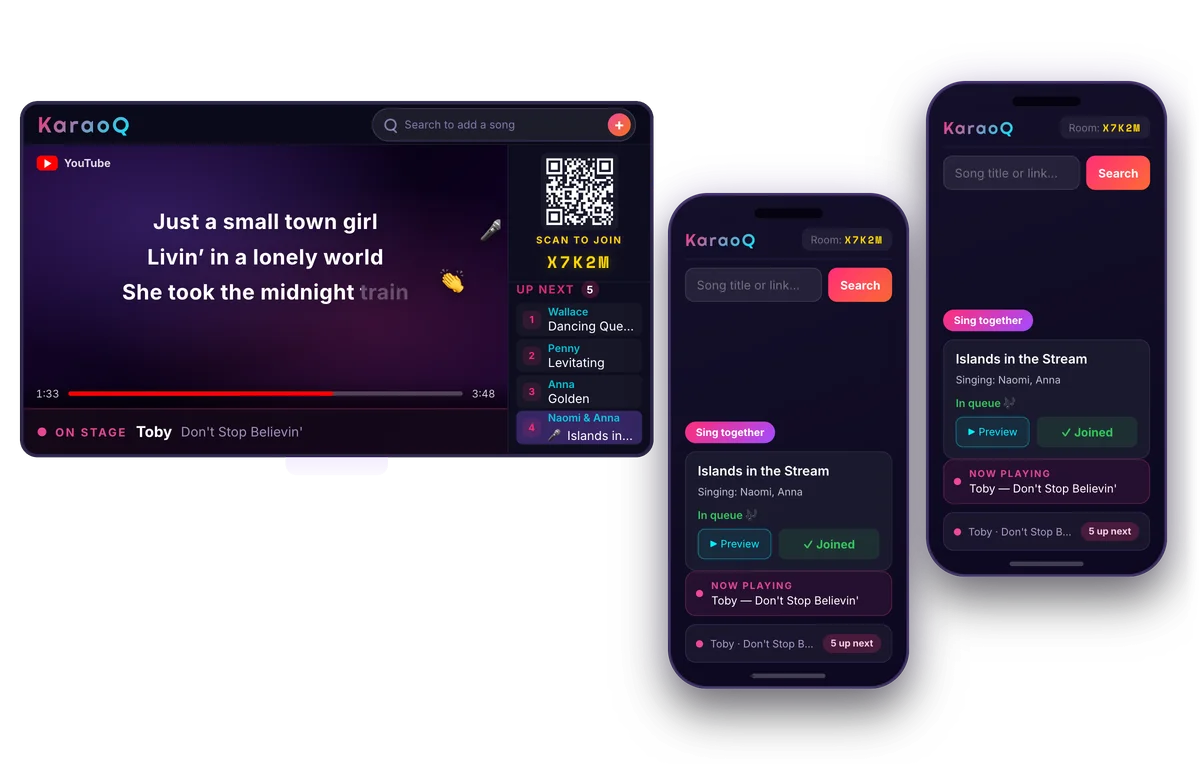
What a KaraoQ night looks like: the queue on the big screen, everyone adding songs from their own phone. No app, no sign-up. Start a room, it's free Get the display onto the TV
Pick the route for your TV from the list above: type the display address into the TV's browser, cast or mirror it from a phone or laptop, or plug in over HDMI. Tap once to allow playback if the TV asks.
Keep the controls on your phone
The TV only ever shows the song, the lyrics and who's up next. Skipping, reordering and pausing stay on your phone or laptop, so nobody walks up to the screen mid-chorus.
Let guests queue from their seats
Guests scan the QR code on the TV, search YouTube on their own phones and add songs to the shared queue. The lineup builds itself while the current singer has the screen.
Frequently asked questions
- Can I do karaoke on a smart TV without a karaoke machine?
- Yes. Any TV that can show a web page or receive a cast can be the lyrics screen. KaraoQ plays karaoke tracks from YouTube in the browser, so the machine's two jobs — song library and lyrics display — are already covered. A microphone and a speaker are all you add, and even those are optional for a first night.
- Does it work on a Samsung or LG TV?
- Yes. Both have a built-in browser: open it and go to your room's display address. Sets from roughly 2020 onwards handle it well; older ones may struggle to play video, in which case AirPlay (both brands support it on recent models) or an HDMI cable does the job. Samsung's own karaoke app on 2025 TVs needs a subscription — this route is free.
- How do I do karaoke on a Roku or Fire Stick?
- Fire TV Stick: open the Silk browser and type in the display address — that's it. Roku has no browser, so mirror from a phone or laptop instead: AirPlay works on 4K Rokus and Roku TVs, and Windows or Android can screen-mirror to any Roku. On either device, an HDMI cable from a laptop is the fallback that always works.
- Why is my voice delayed when I sing through the TV?
- Because the sound is taking the slow road: TV processing, then a soundbar over optical or ARC, then possibly Bluetooth. Each hop adds a few dozen milliseconds and your ear notices the total. Route the mic into a speaker instead of the TV, and ideally send the music to that same speaker too. If you must use TV audio, use Game picture mode and switch off audio delay settings.
- Casting or HDMI — which is better for karaoke?
- HDMI, if a laptop can sit near the TV: zero lag, no Wi-Fi dependence, and a headphone jack to feed a speaker. Casting is fine for a casual night and needs no cables — video and audio arrive together so the lyrics stay in time — but it can stutter on crowded Wi-Fi and pairs badly with a separate speaker. The TV's own browser beats both when it's available.
Whichever route fits your TV, the screen only ever shows the song and the words — the controls stay private on your phone, and guests never have to touch the TV. Keep the singer's voice out of the TV's audio chain and karaoke on the big screen needs no dedicated hardware at all.
Ready to start?
Create a room and share the code — your karaoke night is one tap away.