KaraoQ Guide
The cheap home karaoke setup that actually works
The secret to cheap home karaoke is that the expensive part — the songs and the machine — is now free. KaraoQ plays millions of karaoke tracks straight from YouTube in your browser, with a shared queue everyone fills from their phones, so the whole software side costs nothing. That leaves the physical bits: something to hear the music on, something to sing into, and a screen for the lyrics. You probably own half of it already. Here's what's worth buying for under $200, the one mistake that ruins most first attempts, and what you can skip entirely.
Updated September 2026
Why a karaoke machine is the wrong thing to buy
Open up any home karaoke machine and you'll find a speaker, a couple of microphone jacks, a volume-and-echo circuit, and a way to play songs. The song part is what you were paying for, and it's the part that dates fastest — a disc slot, a bundled catalog, an app that stops being updated. YouTube plus KaraoQ replaces it for free and never runs out of songs.
What's left is a speaker with mic jacks, and the party speaker aisle does that better: louder, sturdier, battery-powered, and useful for every other gathering. Karaoke-branded machines in the same price range are routinely flimsier than the equivalent party speaker. Unless you're buying for a small child who wants the lights and the disc slot, buy the speaker.
The Bluetooth delay trap
Almost every disappointing home karaoke setup has the same cause: the singer's voice arrives a fraction of a second after they sing, and it's impossible to stay in time. Bluetooth is the usual culprit — it adds a delay you can clearly hear — and a TV or soundbar adds more while it processes the audio. A microphone paired to a TV, or music going from the TV out to a Bluetooth speaker, both fall into this trap.
The rule that avoids it: the microphone goes into the speaker, never into the TV or the phone, and the music comes into that same speaker by cable from the laptop's headphone jack rather than over Bluetooth. Voice and backing track then leave one box at the same instant, and the TV is only there to show the words. The all-in-one Bluetooth mics with a built-in speaker follow the same rule by accident, which is why they work at all.
Wired mics are the budget move
Cheap wireless karaoke mics drop out, eat batteries and often pair over 2.4 GHz, where they fight with every phone in the house. A wired dynamic handheld microphone — the type used on every stage in the world — costs less than a mediocre wireless one, needs no batteries, rejects the backing track, and survives being dropped. Buy two for duets, plus a cable each.
One detail that catches people: a quarter-inch plug with two black rings is a stereo plug and gives silence in a mono mic jack. You want the one-ring version, or an XLR cable if your speaker has an XLR input.
Step by step
Start with what's free: the screen and the songs
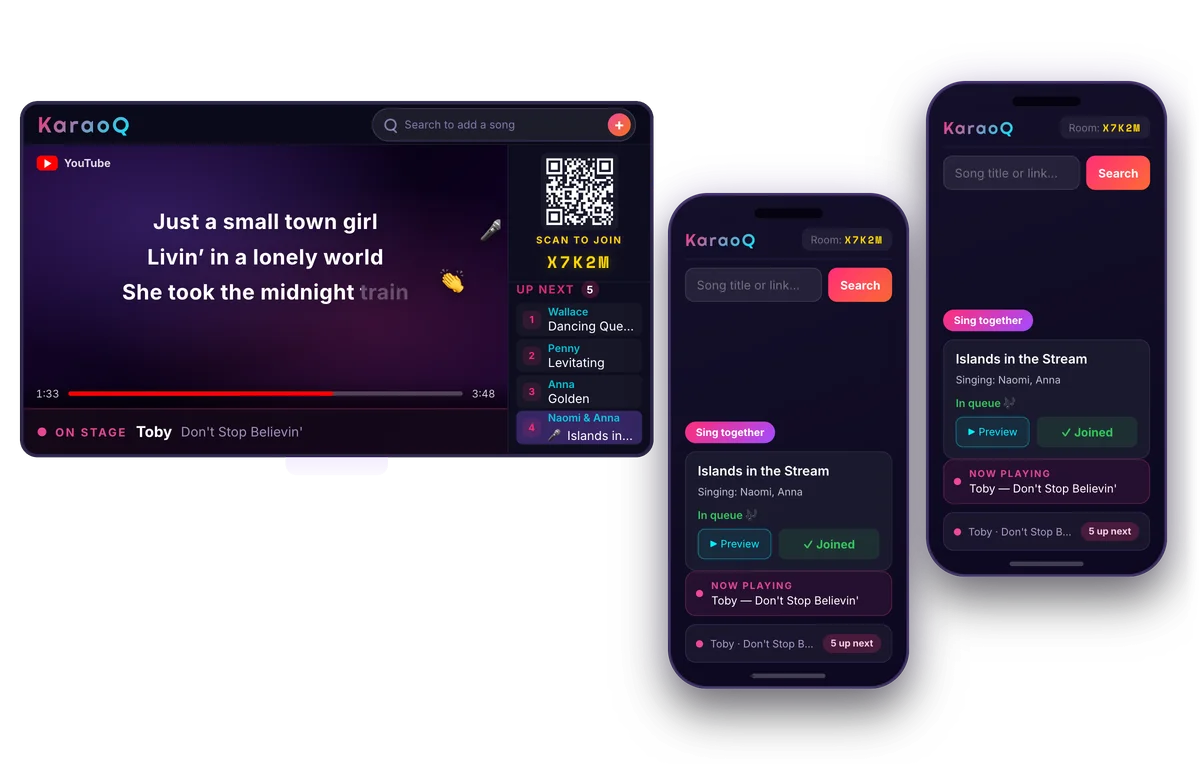
Open KaraoQ in a browser and you have the song library, the shared queue, and the lyrics display handled. Any TV, laptop, tablet, or even a phone propped on the coffee table works as the lyrics screen — spend nothing here until you know you need more.
What a KaraoQ night looks like: the queue on the big screen, everyone adding songs from their own phone. No app, no sign-up. Start a room, it's free Buy one speaker with a microphone input
A Bluetooth party speaker with a quarter-inch mic jack and an echo knob is the whole PA. Feed it the music by aux cable from the laptop, not over Bluetooth, so the sound stays in step with the lyrics on the TV. Battery models follow the party outside.
What to buy
Some links below are affiliate links — if you buy through them, KaraoQ may earn a small commission at no extra cost to you. It's part of how we keep KaraoQ free.
- Bluetooth party speaker with microphone input
The heart of the setup and the one thing worth spending on. Insist on a quarter-inch mic jack (two is better), an echo control and an aux input. Pick a battery model if the party ever moves to the garden.
- 3.5 mm to 1/4-inch aux cable
Laptop headphone jack to the speaker's aux input. This is what keeps the music in time with the lyrics — and the cable nobody remembers until the party has started. Get the RCA version instead if that's what your speaker has.
- All-in-one karaoke machine (optional)
Speaker, mic inputs and lights in one box. Skip it for adults — the party speaker does the same job better — but for a child's first setup the lights and the simplicity are the point.
- Bluetooth party speaker with microphone input
Add microphones — into the speaker, not the TV
A pair of wired dynamic mics is the best value; a two-pack of wireless karaoke mics with their own built-in speakers is the zero-setup alternative. Either way the voice goes into a speaker, never into the TV, so it stays in sync with the music.
What to buy
- Wired dynamic vocal microphones
The stage standard and its budget clones. Nearly indestructible, no batteries, and a cardioid pattern that hears the singer rather than the speaker. Two of these plus cables cost less than one flaky wireless set.
- Wireless karaoke microphones with built-in speaker (2-pack)
The zero-setup option for kids and small rooms: your voice and the music come out of the mic itself, so there's nothing to wire and no delay to hear. Not loud enough for a full party — that's what the speaker above is for.
- Wired dynamic vocal microphones
Get the lyrics on the big screen
Open KaraoQ's display in your smart TV's browser, cast it from a laptop or phone, or plug the laptop in over HDMI. The cable is the zero-lag, zero-fuss option and puts the laptop's headphone jack right next to the speaker. Guests keep queuing songs from their own phones throughout.
What to buy
- HDMI cable (10 ft)
Laptop to TV, done. No lag, no dropped connection mid-chorus, and it works on any TV. Ten feet reaches from the couch to the screen.
- HDMI cable (10 ft)
Frequently asked questions
- How much does a home karaoke setup cost?
- As little as nothing: KaraoQ and its YouTube song library are free, so a TV and a phone are technically a complete setup. A party speaker with a mic input and a pair of wired mics — the setup most people land on — comes in under $200 in the US, with no subscription on top. Anything beyond that is for bigger rooms.
- Do I need a karaoke machine?
- No. A karaoke machine bundles a speaker, mic inputs, and a song catalog — but the catalog is the part that used to cost money, and YouTube made it free. A Bluetooth party speaker with a mic input does the same job, and KaraoQ replaces the catalog, the queue, and the lyrics screen.
- Do I need a mixer?
- Not at this budget. The mic volume and echo knobs on a party speaker are a small mixer already. A separate mixer is worth it later, when you want two singers on their own channels and real reverb — that's the next level up, covered in the full setup guide.
- What's the cheapest way to get lyrics on the TV?
- Your smart TV's own browser, if it has one — open the display address and you're done. Next is an HDMI cable from a laptop, often one you already own, then casting with AirPlay or Google Cast. A streaming stick is only needed for older TVs that can't do any of those.
- Why do the vocals lag behind the music on my wireless mic?
- That happens when the mic pairs to the TV or phone over Bluetooth — the round-trip adds a delay you can hear. Route the mic into the speaker instead (via its receiver or a cable), or use a mic with its own built-in speaker. Voice and backing track then come out of the same box, in sync.
- Wired or wireless karaoke microphones?
- Wired, on a budget: no batteries, no dropouts, and better sound per dollar. Wireless is worth it once the room is big enough that cables become a trip hazard, and then only a UHF system — the 2.4 GHz kind shares the airwaves with your Wi-Fi.
- Can I use my soundbar or a small Bluetooth speaker for the vocals?
- For the music, yes. For the microphone, no — soundbars and pocket Bluetooth speakers were never built for the sharp peaks a voice produces, so they distort at party volume and can be damaged. A party speaker with a mic input or a powered PA speaker is designed for exactly that, and it's the one thing in this guide worth spending on.
Total damage for a setup that handles birthdays, holidays, and random Tuesday nights: one speaker, two mics, and a couple of cables. The song library, the queue, and the lyrics screen stay free forever — that part's on us.
Ready to start?
Create a room and share the code — your karaoke night is one tap away.